Saturday, May 8, 2010

Hyper-V: “No virtual machines were found on this server” and “Access Denied”

It seems that my adventures with Hyper-V will never end. Today I was finishing up the rebuild of my laptop, which included installing the Hyper-V manager. Luckily I had previously taken good notes, I just wish I had followed them. I remembered that I had to get the Remote Server Administration Toolkit for Windows 7. After installing it, I enabled it, tried to connect to my host server, and was rewarded with the Access Denied message. After a few minutes, the Access Denied changed to the No virtual machines… message.

Sadly I spent more time on this than I should have. After review my notes, I realized that I didn’t make the COM security changes using the DCOMCNFG tool. 30 seconds to make the change and no more error messages.

Laptop Rebuild

I decided to join the cool kids and purchase an SSD. An opportunity appears and I decided to take advantage of it. I did a little bit of research and decided to get the Intel X25-M. There are an assortment of 128GB drives available but the little extra to get the 160GB seemed to be worth it.

I must say that I’m really impressed with the speed of the drive but my favorite “feature” is the sound level. There is no noise and I really like that.

Now, the downside to a new driver is installing all the software that you accumulate over the years. It’s amazing. Here’s the list of everything that I just installed:

  • AVG
  • Ascendo DataVault
  • Foxit
  • Office 2010
  • Outlook Connector
  • Office Communicator
  • SharedView
  • Silverlight 4
  • PersonalBrain
  • Quicken
  • Blackberry Desktop Manager
  • blu
  • VMWare Workstation
  • Windows Home Server Connector
  • Windows IM
  • Windows Live Writer
  • Zune
  • Live Meeting
  • Hyper-V Manager
  • Adobe Digital Edition
  • ImgBurn
  • Intel SSD Tools
  • All the necessary drivers

Yes, there are no development tools in the list. I do all of my development in VMs. It really simplifies things.

Saturday, April 17, 2010

Hyper-V Server - “Cannot connect to the RPC service on computer <computer-name>. Make sure your RPC service is running.”

I installed Microsoft Hyper-V server back in November 2008. I almost never have any problems. It just sits there and runs. The only problem that I have is that periodically I won’t be able to remotely connect to from the Hyper-V Manager. I get the “Cannot connect to the RPC service on computer <computer-name>. Make sure your RPC service is running.” I addressed this issue here.

Today I encountered this error again. So I fired up Remote Desktop to connect to the server. Instead of connecting, I was greeted with a message about not being able to connect to the Local Security Authority.

I’ve seen this before and I should have written about it then. Doing so would have have saved me a couple of minutes.

This is my home network and both the server and my laptop run in a workgroup. The affect is that, while the same account is on both machines, the accounts are managed separately. The password for the account on the Hyper-V server had expired. I used RDP to connect as the admin and reset the password for my non-admin user. Now all is good and I won’t have this problem for another 45 days.

Monday, March 8, 2010

ALTER COLUMN on XML column results in Error 511

We frequently change the schema that constrains an XML column in one of the tables. When it’s time to update the schema collection and re-type the column, we use the following steps:

  1. Remove the type with the ALTER TABLE statement:
    ALTER TABLE <table> ALTER COLUMN <xml-column> XML;
  2. Change the schema collection by recreating it.
  3. Reset permissions:
    GRANT EXECUTE ON XML SCHEMA COLLECTION…
  4. Reapply the schema constraint to the column:
    ALTER TABLE <table> ALTER COLUMN <xml-column> XML(<schema collection>)

Twice I’ve started getting error 511 on step one:

Msg 511, Level 16, State 1, Line 1
Cannot create a row of size 8073 which is greater than the allowable maximum of 8060.
The statement has been terminated.

This thread from the SQL Server XML forum indicates that the behavior is “by design.” There seems to be a limit to the number of times that you can alter a column. The good news is that there is a work-around. Rebuilding the indexes on the table appears to reset the alter-count.

Sunday, February 28, 2010

VMWare NAT Service (vmnat.exe) goes wild

Tonight I decided to upgrade to VMWare Workstation 7. I’d been running on 6.5 since it was released but held off on 7.0.

The install went smoothly, as expected. The fun started after the final reboot. My usually well-responsive laptop was anything but. I fired up the Windows Task Manager and sorted by CPU but nothing registered at more than 1%. I then clicked the Show processes from all users option and vmnat.exe appeared at the top of the list with ~50% CPU and 5.9MB Memory.

Restarting the laptop didn’t solve the problem.

A web search turned up the following thread VMWare Workstation 6.5.3 + Windows 7 Enterprise 64 = VMNAT.EXE issue? in which the poster is complaining about high CPU utilization from vmnat.exe. The resolution to his problem was to remove NAT from VMNET0.

I used the Virtual Network Editor to check my configuration. No NAT on VMNET0. I used the Restore Default option and after it completed, vmnat.exe had calmed down to 0% CPU and 1.6MB Memory.

Saturday, February 13, 2010

Upgrading TFS 2010 B2 to the RC

The Release Candidates of Visual Studio and Team Foundation Server were made available last week and I’m finally getting around to upgrading my installation of TFS. In this post, I’ll record the steps that I took and the problems encountered.

1. Backup the server
I’m actually running TFS in a VM hosted within a Hyper-V 2008 Server. To backup my server, I shutdown the VM and used the Hyper-V Manager to create a snapshot of it.

2. Uninstall TFS 2010 Beta 2

image

Happily the uninstall didn’t encounter any problems

3. Using the Hyper-V Manager, I mounted the TFS RC ISO.

4. Next I started the install of the Release Candidate.

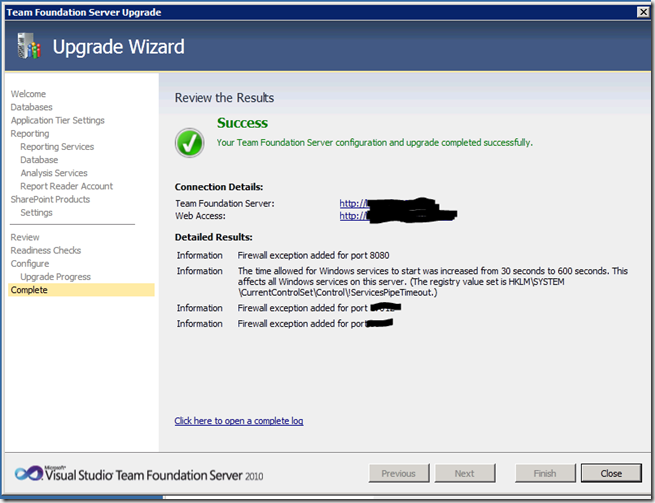
5. After the install completed, I selected the Upgrade wizard. After stepping through the pages and providing all the information, the Configure step is kicked off to do the real work.

image

6. After a very short amount of time – success!
image

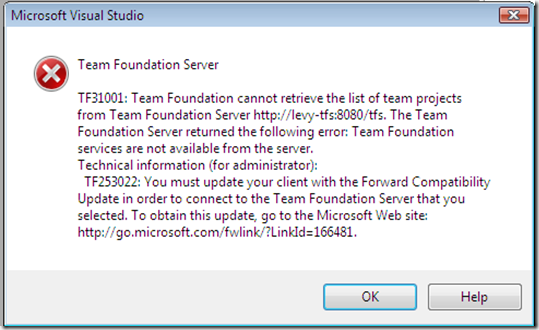
The final test was to fire up a VM containing an install of VS 2008 and access the new TFS installation. Unlike the rest of the upgrade, this didn’t work the first time. Instead I was met with:
image

The Forward Compatibility Update (KB974558) is a patch to VS2008 SP1 that enables interoperability with TFS 2010. I didn’t need this to access the Beta 2 install but who am I to argue with the computer…

KB974558 is a short download and a quick install. I launched VS2008 again and Team Explorer happily reached out to the TFS server!

And with that – my TFS 2010 installation has been upgraded to the RC. Kudos to the TFS team!!

Monday, February 1, 2010

Outlook Date Tricks

I love it when a piece of software surprises me in a good way - since it so rarely happens. In this case, I’m talking about Microsoft Outlook and some convenient functionality that’s embedded within its date fields. I actually ran into this a rather long time ago but have only now gotten around to writing it up.image of scheduling bars

Say that you’re creating a new meeting request for tomorrow. You could always use the scheduling bars to select the start and end times of the meeting. The greed bar represents the start time and the red for the end. It works well when the meeting is within the next couple of days. But what if meeting is for next Wednesday? You could:

  1. Scroll some number of days on the Scheduling page
  2. Calculate the date and type it in to the Start Time box
  3. Use the drop-down calendar to select the appropriate date
  4. Enter “next Wednesday” into the Start Time box

Yup. If you enter “next Wednesday” and press tab, Outlook will do the calculation for you:

Start time of next wednesday

Outlook calculates the correct value

Try it!

Through experimentation, I’ve discovered that the following also works:

  • name of a day (ex. Monday, Tuesday, etc)
  • “today”, “tomorrow”, “yesterday”
  • “last” {name of day}
  • “[number] week[s] from {today | tomorrow | name-of-a-day}” (ex. 2 weeks from Monday)
  • “last day of {this|next| last} month”
  • “last {name of day}”
  • “Christmas” (I was surprised!)

There’s probably more.