Friday, July 3, 2015

Installing Windows 10 Build 10162 on a Dell Venue 8 Pro

Today I decided to repave my Dell Venue 8 Pro with the latest Windows 10 Preview build (10162). I've been running Windows 10 on the device for a very long time, starting with an upgrade from Windows 8.1. Unfortunately, along the way, updates began to fail. Such is the risk of a preview OS.

The installation turned out to be pretty easy.

As most projects go, the prep is the most important step. First, make sure that the device is fully charged. I swear the thing doesn't change when it's running. Maybe it's just my device. Maybe I'm imagining it.

While the device is charging, download the 32bit version of the ISO from the Windows Insider site and burn it to a USB drive. I used isotousb. Format the USB drive for FAT32 and make sure that you click the option to create a bootable drive. Oh! Don't forget to grab the activation keys.

You're also going to need some drivers. You can get them from the Dell Venue 8 Pro Product Support page. I ended up using:

There's also an update for the touch screen (Panel Touch Firmware for Dell Venue 8 Pro 5830) but the installer notified me that the touch driver was already up to date after I had installed the Intel Atom A3000 Series Driver. YMMV.

I created a folder on the USB drive and copied all the installers to it.

Then you're going to need a USB hub.Windows 10 didn't come with a driver for the touch screen so you're going to need a mouse. The hub will allow you to have both the USB drive and mouse connected at the same time. You might also need an adapter (like this one) to connect the hub to the micro USB on the Venue 8.

With the device turned off, connect the USB hub to it. Press the Volume Down button and power on the device. It'll seem like the boot stalls until you release the Volume Down button. Then the device will boot into the BIOS setup. Navigate to the BOOT tab. You should see both the internal drive and the USB drive showing as bootable drives. Change the first boot target to the USB drive then save the changes and let the device restart. If all went well, the Windows 10 installer should start.

I chose the Custom Install option and removed all the existing partitions. 

After the installer completed, I installed the drivers in the same order that I listed them above.

One note: the only operating difference that I've noticed is that I have to hold down the power button for a couple of seconds to power on the device. Otherwise, everything else seems to be working as expected. 

Wednesday, March 4, 2015

Visual Studio 2013 APPCRASH KERNELBASE.DLL

I've spent the last two night trying to figure out why Visual Studio 2013 crashes roughly two minutes after loading. 

Faulting application name: devenv.exe, 
version: 12.0.31101.0, 
time stamp: 0x54548724
Faulting module name: KERNELBASE.dll, 
version: 6.3.9600.17415, 
time stamp: 0x54504ade
Exception code: 0xe06d7363
Fault offset: 0x00014598
Faulting process id: 0x940
Faulting application start time: 0x01d056d558e8e214
Faulting application path: C:\Program Files (x86)\Microsoft Visual Studio 12.0\Common7\IDE\devenv.exe
Faulting module path: C:\Windows\SYSTEM32\KERNELBASE.dll

It started right after I had applied a couple of Windows updates so I started trying to resolve the problem by rolling those back. No change.

I tried resetting the Visual Studio users settings. Nope.

Integrity scan of the disk. No problems found.

Turned to the Internet and found this answer in the Microsoft forums. It seems that my User Profile was corrupted. I created a new account on the machine, killed the previous one. Done.

Thursday, December 4, 2014

Reversing a file with Powershell

Today I was tracking down the source of a deadlock and needed to reverse the SQL Server log file so that it would be easier to follow the deadlock information. A quick search for reversing a text file lead to a command called Tail which must be a *unix command. I also found a couple of Powershell scripts but nothing really simple.

As it happens, get-content returns it's results as an array.
And you can reverse an array using the static Reverse() method
And you can write an array using out-file.

A quick example:
$c = (get-content deadlock.log)
[array]::Reverse($c)
$c | out-file "rev-deadlock.log"


Saturday, October 8, 2011

Metro style apps–loading an image from content


I’m writing a Win8 Metro style app and I wanted to expose an image from one of my view models. The image comes from a file that I have included in the project as content. After wandering through the samples, I was finally able to piece together this solution:

image

The XAML binds to the property using the Source attribute:

image

Some things to note. The image’s Build Action is set to Content and the path delimiters in the call to ResourceLoader.GetFile() use forward slashes (“/”). Using a backslash results the exception: NamedResource Not Found (HRESULT 0x80073B17).

Wednesday, September 28, 2011

Windows Phone 7 syncing to online Exchange results in Error 85010014

I upgraded my phone to the Mango update yesterday. Everything went fine except or so I thought. This morning I noticed that my phone hadn’t synced to the company’s Exchange account (Microsoft BPOS) for over 10 hours. When I forced a sync, it resulted in the following error message:

Not Updated
There’s a problem with red001.mail.microsoftonline.com. Try again later.
Last tried xx seconds ago
Error code: 8510014

I screwed around with the configuration for more time than I should have. I tried reentering the server. I tried entering the password again. I even removed the account from the phone and recreated it.

I even went to the Mobile Devices section on OWA and removed the device and then removed the account AGAIN.

Nothing worked.

This evening I stumbled onto something that did work.

I recreated the account on the phone (for the fourth or fifth time) and received the error again. On a whim, I unchecked all the content types under the Content to Sync section (Email, Contacts, Calendar and Tasks). I then issued a sync and it worked! I then added Email and re-synced. That worked! I continued to add the other three items, one at a time and followed by a re-sync.

Now everything is good again.

Thursday, September 22, 2011

Installing SQL Server “Denali” CTP3 on Windows 8 Preview

I, and I’m sure many other developers, have been eager to begin experimenting with developing on Windows 8 and building Metro style apps. I was fortunate to attend //build and receive one of the Samsung 700T tablets with Windows 8 and Visual Studio 11 already loaded. Unfortunately my wife and daughter also enjoy the tablet so it’s not available to me for long programming sessions.

So in order to make everyone happy, I have installed the Win8 Preview in a VM under VMware Workstation 8. Here’s the configuration:

Host: Windows 7 running VMware Workstation 8
Guest: Windows 8 Preview (build 8102), 2GB RAM, 2 processors and 40 GB SCSI hard drive

I installed Visual Studio 11 without any problem other than the fact that it installed SQL Server without giving me any choice for the configuration. The easiest way to remedy that was to uninstall SQL Server and then reinstall it.

You can probably guess that the reinstall didn’t go smoothly. If it had, there’d be no reason for this post, eh?

I started by download the installer from MSDN. There are a few choices depending on whether you wanted 32bit or 64bit, with or without tools. I pulled down the 64bit package that had the tools.

Then I copied it to the VM.

I double-clicked the .EXE, it unpacked into a temporary folder, a command windows briefly flashed and then nothing. So I did what anyone would have done. I double-clicked the .EXE again and watched the same sequence of events unfold. “Ah!” I said. I must need Admin privileges! No problem, I launched a command window as Administrator, navigated to the folder and ran the .EXE.

Same results as before.

I was confused because SQL Server had already been installed on the machine. I had just uninstalled it!

In the process of poking around on the machine, I ended up in the “Turn Windows features on or off” section of the Uninstall dialog. It was in there that I noticed that .NET 3.5 was not enabled. I enabled it, went back to the command prompt and retried the installer.

Something happen this time:

image

The installer can’t find .NET 4.0 but 4.5 is on the box! I hit Continue and the SQL Server Installation Center dialog appeared on the screen.

image

It was easy sailing from this point!

By the way, you’ll see this windows pop up a lot!

image

The installation continued without any problem and I was able to successfully install SQL Server “Denali” CTP3.

image

The unhandled exception dialog appeared again when I tried to close the SQL Server Installation Center dialog:

image

Hitting the Quit button finished closing the dialog.

If you’re curious, here are the SQL Server apps as they appear on the Win8 Start page:

image

And here’s the new SQL Server Management Studio

image

Monday, September 19, 2011

Notes from //build/ - Windows 8

I attended the Microsoft //build/ conference last week. This was the public world’s second introduction to the next version of company’s OS, Windows 8. It was also the first time that any real depth about the product was provided. The general consensus from those I spoke with was they were very pleased with the features shown.

Metro style apps

First, and most obviously, the Metro style from Windows Phone 7 has been brought forward as the primary user experience in Windows 8. Along with that, the OS has been optimized for touch but the stylus, mouse, and keyboard are all still supported.
 

image
(Attribution: Microsoft Corp.)

Note: It was pointed out that the correct capitalization is “Metro style apps” with a lowercase “S” on style and a lowercase “A” on apps.

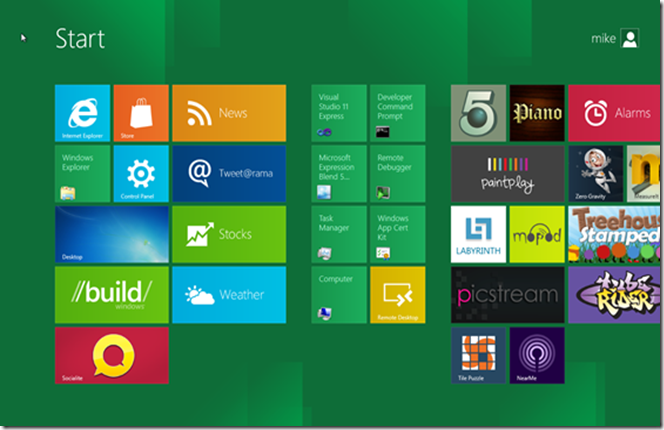
The Start button has been morphed from a popup to an entire screen that consists of 1x1 or 2x1 “Live” tiles.
 image

The Start screen has all the apps that were pinned. There is an Apps screen that can be reached via Search. It contains all the apps that are installed:
 image
You can imagine that this screen could become quite crowded once a user starts installing apps. To help with this, Microsoft has introduced Semantic Zoom. Semantic Zoom used the “pinch zoom” gesture but instead of making the image larger, the entire view can be changed, providing something that is useful.

Using Semantic Zoom on the Apps page changes the view to:
 image
Semantic View was demonstrated on the Start page for the keynote, but it has been disabled in the Windows 8 preview that Microsoft released to the public.

Live Tiles

The content of the tiles can change to reflect information that is important to the user. The intent is to create a personal connection with the user. For example, the Stocks application will cycle the most recent information for each stock symbol that the user has added to the application. This will continue even if the application has been suspended.


 image

Suspended?

Yes. When the user navigates away from an app, the app will be suspended. The app will be notified that it is being suspended and given an opportunity to save any transient state. When the app is launched, it will be given an opportunity to restore that state. This is the Tombstone functionality that is currently used by Windows Phone 7 applications.
There is no concept of closing an app within the Metro style. Windows 8 will take of that for you.

Developing apps

A controversy was created when Windows 8 was first introduced to the public. Microsoft announced that HTML5 and JavaScript were the tools that would be used to create the new Metro style apps. At //build/ we learned the truth: Use what you know.


“Use what you know” was the tagline attached to the conference title and the message that Microsoft was delivering. At //BUILD/ Microsoft introduced a new development platform for Windows: Windows RunTime or WinRT. Using WinRT, a developer can create Metro style apps using:

-    C/C++
-    C#, VB.Net
-    HTML5 & JavaScript
 

image
(Attribution: Microsoft Corp.)

The best way to think of WinRT is as the Base Class Libraries for Metro style apps.
I plan to do another article that addresses WinRT.

And .NET?

.Net is still an applicable platform for developing both Metro style and Desktop (think traditional) apps. Not all of the .Net framework is exposed when developing a Metro style app. Where there is functionality that is duplicated with WinRT, or not allowed, those .NET APIs have been hidden.

Is Silverlight dead?


Microsoft did not deliver any message about Silverlight during the conference. Silverlight will be supported in the Desktop version of IE (The Metro style version of IE does not allow any plugins, for security and stability). I don’t expect Microsoft to make any announcement about Silverlight in the near term. This is a preview version of Windows 8. We are a long time from RTM.
There are still a lot of solutions to deliver, and since Silverlight will continue to be supported by Windows 8, I feel that Silverlight is still a valid solution platform.

Is a Metro style app written in HTML5 & JavaScript accessible via the browser?


Nope. A Metro style app is not a web page. They must be installed from the App store (consumers) or side-loaded (Enterprise).  Don’t let the HTML5 & JavaScript fool you. This is just the choice of presentation platform and language. It is no different from choosing XAML and C#.

Getting started

The keynotes, and most of the sessions, were recorded and are available on the //BUILD/ website (www.buildwindows.com).
The preview of Windows 8 can be downloaded from the Windows Dev Center (http://msdn.microsoft.com/en-us/windows/apps/br229516). One download contains a preview of both Visual Studio Express 11 and Expression Blend. If you’d rather install them yourself, you can download them separately from the Visual Studio website: (http://www.microsoft.com/download/en/details.aspx?displaylang=en&id=27543).